Last updated October 07, 2026
This article covers migrating to Essential and classic Postgres plans (Standard, Premium, Private, and Shield), and doesn’t apply to Heroku Postgres Advanced databases.
In this guide, we walk you through the process of migrating your Postgres database from DigitalOcean Managed PostgreSQL to Heroku Postgres with a dump and restore strategy. This guide uses DigitalOcean Spaces Object Storage to store the database dump file. Before starting the migration, make sure you completed the steps from Preparing Your Migration to Heroku Postgres.
Check Your Database Size
With a managed database from DigitalOcean, you can estimate your database size either through the web UI or through querying the database with the psql client. In your DigitalOcean project, go to the Databases page and click on your database. Then, navigate to the Insights tab.
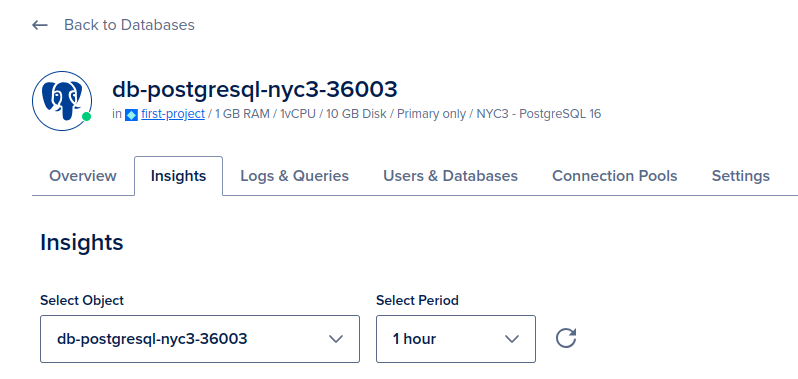
On the Insights page, there’s the Disk Usage chart. This chart shows the amount of disk space that your database currently uses, displaying it as a percentage of the overall storage allocated to your instance. We see at the top of the database page that this database instance has a 10 GB disk. It also has 1 GB of RAM and runs with 1 vCPU.
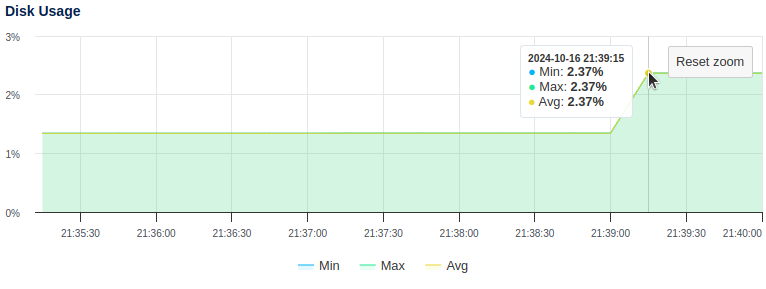
In the example, the storage is 2.37% of the total 10 GB for this instance, or approximately 237 MB. However, this number includes all storage for the system running on your managed instance, including system files, installations, and more. So, the actual database size is only a fraction of this number.
Usually, the dump and restore strategy for migration is suitable if your database size is less than 100 GB.
For a more accurate size reading, connect to your database instance and use the list databases \l+ command. You can find the Postgres credentials for your database by navigating to the Overview tab. There, you see the Connection Details section.
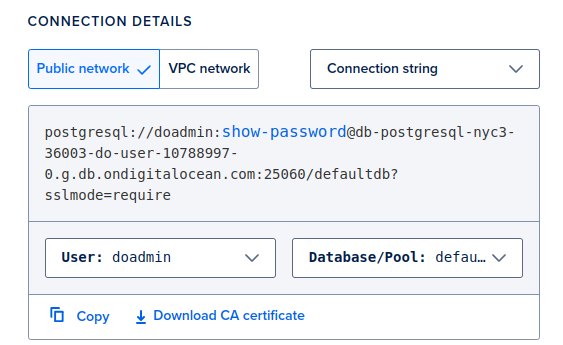
Select Connection string from the drop down, and then click Copy. The connection string for using the psql client uses the format:
postgres://DB_USERNAME:DB_PASSWORD@DB_HOST:DB_PORT/DB_NAME
Our example database is called defaultdb, so we connect our database to the psql client with:
$ psql postgresql://doadmin:thisismypassword@db-postgresql-nyc3-36003-do-user-10788997-0.g.db.ondigitalocean.com:25060/defaultdb
After connecting, you can show the database size with the list databases \l+ command:
$ psql=> \l+

                        List of databases
    Name        | Owner     | Encoding |   Collate   | Size   |
----------------+-----------+----------+-------------+--------+
 defaultdb      | doadmin   | UTF8     | en_US.UTF-8 | 56  MB |
The Size column shows our database size is 56 MB.
See Choosing the Right Heroku Postgres Plan for which Heroku Postgres plan fits your database size.
Create and Upload the Database Dump
Before starting, either set your system to read-only mode, or bring all your dependent services offline and notify end users of the current maintenance status.
If your database is attached to a Heroku app, put your app in maintenance mode and downscale any worker dynos that connect to the database.
Back Up Your Database
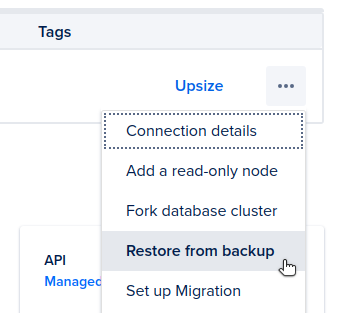
Before performing the migration, make sure you have a recent backup of your database on DigitalOcean. DigitalOcean takes periodic snapshot backups of your managed Postgres database. DigitalOcean holds onto automatically generated daily backups for up to seven days. In your list of databases, you can click on the options icon to show actions you can take. Click Restore from backup to check for available backups.
Dump the Database to a Local File
Using pg_dump, create a logical backup of your DigitalOcean database to a local file:
$ pg_dump postgres://DB_USERNAME:DB_PASSWORD@DB_HOST:DB_PORT/DB_NAME \
    -Fc -b -v \
    -f /tmp/data-for-migration.sql
The time it takes to run this command varies depending on the size of your database.
Upload the File to DigitalOcean Spaces Object Storage
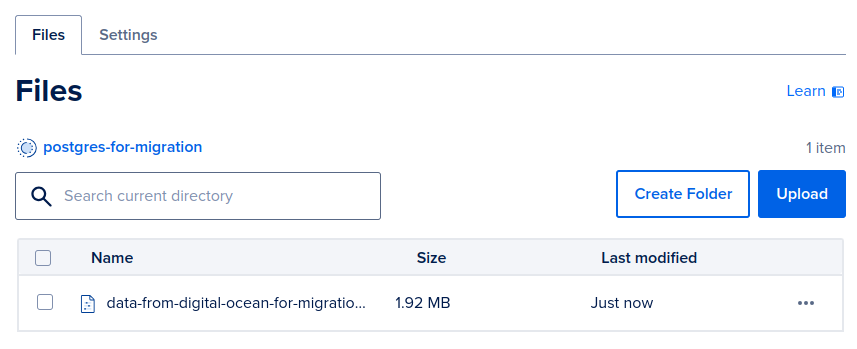
Heroku can restore Postgres logical backups that are accessible via a URL. For this migration from DigitalOcean, upload your data backup file to Spaces Object Storage from DigitalOcean.
First, create a bucket. In our example, we named our bucket postgres-for-migration.
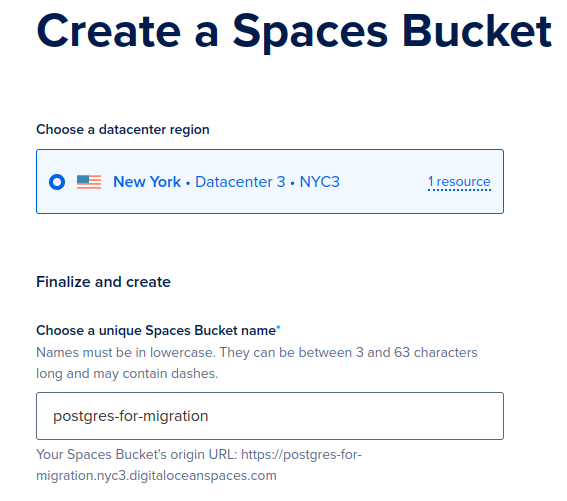
After creating your bucket, upload the /tmp/data-for-migration.sql backup file that you created in the Dump the Database to a Local File step.
Restore to Heroku Postgres
Create a Heroku App
If you already have your app running on Heroku, you can skip this step.
Use the Heroku CLI to log into your Heroku account.
$ heroku login
Next, create a Heroku app and provide a name for it, such as postgres-migration-from-do.
$ heroku apps:create psql-migration-from-do
Creating ⬢ psql-migration-from-do... done
Provision a Heroku Postgres Add-on
After creating your Heroku app, add the Heroku Postgres add-on with an appropriate plan.
Based on the database information from Check Your Database Size, we use the essential-1 Heroku Postgres plan.
$ heroku addons:create \
    --app psql-migration-from-do \
    heroku-postgresql:essential-1
Creating heroku-postgresql:essential-1 on ⬢ psql-migration-from-do... ~$0.013/hour (max $9/month)
Database should be available soon
postgresql-colorful-15568 is being created in the background. The app will restart when complete...
Use heroku addons:info postgresql-colorful-15568 to check creation progress
Use heroku addons:docs heroku-postgresql to view documentation
Heroku begins provisioning a Postgres database for your Heroku app, providing a unique add-on name. Within a few minutes, you can run the following command with the database name to see the created database.
$ heroku addons:info postgresql-colorful-15568
=== postgresql-colorful-15568

Plan:         heroku-postgresql:essential-1
Price:        ~$0.013/hour
Max Price:    $9/month
Attachments:  ⬢ psql-migration-from-do::DATABASE
Owning app:   ⬢ psql-migration-from-do
Installed at: Tue May 19 2026 15:29:01 GMT+0000 (Coordinated Universal Time)
State:        created
Get the Signed URL For the Backup File in DigitalOcean Spaces Object Storage
Next, restore your pg_dump backup to your new Heroku Postgres database. To restore, you need a URL that points to your backup file. The bucket you created in DigitalOcean Spaces Object Storage isn’t public, but you can generate a temporary URL that points to your uploaded file. From your file’s actions, select Quick Share.
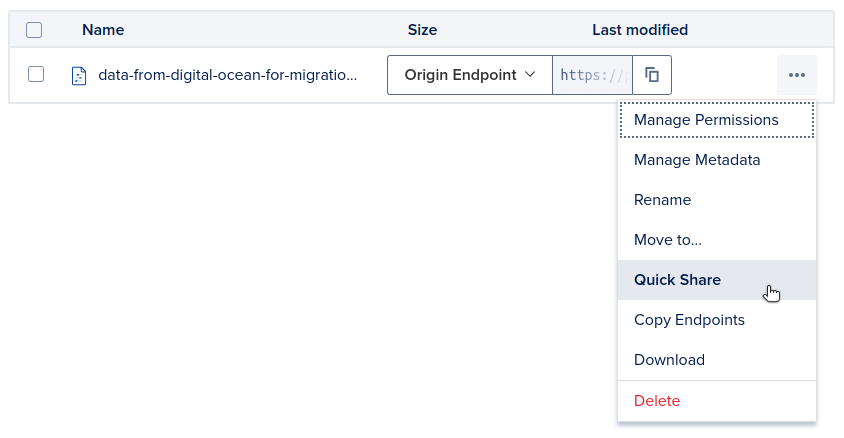
This button opens a dialog where you can set the expiration time of the generated share link. Configure a reasonable expiration time, such as 5-15 minutes, depending on your backup size. Then, copy the path-style file URL.
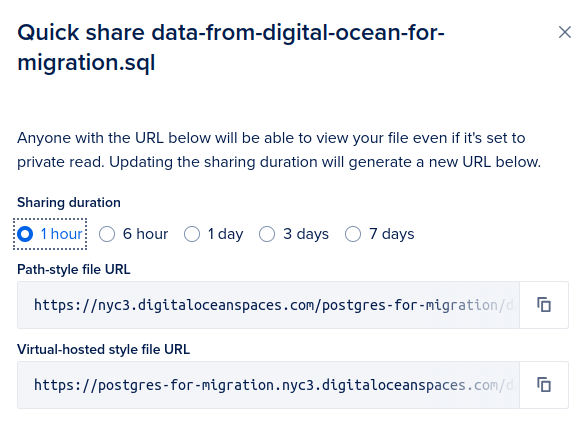
In our example, the signed URL for our database dump file is similar to:
https://nyc3.digitaloceanspaces.com/postgres-for-migration/data-from-digital-ocean-for-migration.sql?X-Amz-Algorithm=AWS4-HMAC-SHA256&X-Amz-Credential=DO00WBC3C3CKELBPQD34%2F20241017%2Fnyc3%2Fs3%2Faws4_request&X-Amz-Date=20241017T045603Z&X-Amz-Expires=3600&X-Amz-SignedHeaders=host&X-Amz-Signature=9e1a55f759fdd42ee9d…
The presigned URL grants temporary access to your database dump. Use a short expiration time appropriate for your restore duration, and delete the dump file from Digital Ocean Spaces Object Storage after migration completes.
Restore Backup on Heroku
Now that you have the presigned URL, use the Heroku pg:backups:restore command to restore your backup into your new Heroku Postgres database.
Use the heroku pg:backups:restore command and provide the presigned URL for your backup in quotes, and the add-on name to restore your database to:
$ heroku pg:backups:restore 'DIGITAL-OCEAN-SHARE-URL-IN-QUOTES' postgresql-colorful-15568 \
    --app psql-migration-from-do \
    --confirm psql-migration-from-do

Use Ctrl-C at any time to stop monitoring progress; the backup will continue restoring.
Use heroku pg:backups to check progress.
Stop a running restore with heroku pg:backups:cancel.

Starting restore of [DIGITAL-OCEAN-SHARE-URL] to postgresql-colorful-15568... done
Restoring... done
Keep in mind with this command:
- When you paste in your DigitalOcean-signed URL, make sure to contain it within quotes.
- Provide the
--appargument to tell Heroku which app and corresponding database you want to operate on. - This command is destructive, requiring you to confirm it. If you don’t provide the
--confirmargument, you’re asked to confirm the action before continuing. - The restore process automatically reassigns ownership of all schemas and tables to the default Heroku credential. The command doesn’t import roles from the source DigitalOcean Postgres database because the default Heroku database role doesn’t have permission to create Postgres roles.
- Make sure that all the extensions used in your DigitalOcean Postgres database are supported on Heroku Postgres.
Migrate Any Custom Settings
Just as you saved your DigitalOcean Postgres configurations to a file called /tmp/settings_postgres.csv, you can do the same for your Heroku Postgres configuration with the command:
$ heroku pg:psql --app psql-migration-from-do \
    -c "\copy (select * from pg_settings) to '/tmp/settings_heroku.csv' with (format csv, header true);"
Compare your Heroku Postgres settings with your DigitalOcean Postgres settings. Find any configurations from your DigitalOcean Postgres setup and reapply them to your Heroku Postgres instance.
Testing and Verifying a Successful Migration
We recommend testing to verify that data has migrated over successfully. Testing can include:
- Comparing table counts between the two databases.
- Comparing row counts for every table between the two databases.
- Comparing query results between the two databases.
- Running various acceptance tests on your new database to validate proper behavior and performance.
- Running the
heroku pg:backups:infocommand to review the logs of your backup restore.
Connecting Existing Apps and Services
After verifying that the database migration was successful, point your existing apps and services to the new database.
Get Heroku Postgres Credentials
When you create the Heroku Postgres add-on, Heroku automatically configures a new environment variable called DATABASE_URL, which contains the connection string for the new database. Run the heroku config:get command to fetch the value of the config var:
$ heroku config:get DATABASE_URL --app psql-migration-from-do

postgres://ub85ophvo36b70:p1eefcd0113725be7d6942302511c7f07c60a355628e8888673cf639a0dc42576@cbhk6rs82poqi7.cluster-czrs8kj4isg7.us-east-1.rds.amazonaws.com:5432/de14engn2aht91
You can also find your credentials with the heroku:pg:credentials command.
The Postgres connection string follows this format, so that you can parse the individual pieces:
postgres://DB_USERNAME:DB_PASSWORD@DB_HOST:DB_PORT/DB_NAME
Alternatively, you can obtain the connection string of your database through the dashboard.
Update Dependent Systems and Test
Update your existing systems to point to the Heroku Postgres database using its connection string. Test each system to make sure the connection is successful.
Wrap-up
Now that your apps and services are pointing to Heroku Postgres and running as expected, you can close the maintenance window and restore full availability to your end users.
When you’re confident that the migration is successful and you no longer need your DigitalOcean database, you can delete it completely.

With your migration complete, you can now enjoy the flexibility and low-cost convenience of Heroku Postgres. See our Heroku Postgres documentation for more information on using your database.