Skip Navigation
Show nav
Heroku Dev Center Dev Center
  • Get Started
  • Documentation
  • Changelog
  • Search
Heroku Dev Center Dev Center
  • Get Started
    • Node.js
    • Ruby on Rails
    • Ruby
    • Python
    • Java
    • PHP
    • Go
    • Scala
    • Clojure
    • .NET
  • Documentation
  • Changelog
  • More
    Additional Resources
    • Home
    • Elements
    • Products
    • Pricing
    • Careers
    • Help
    • Status
    • Events
    • Podcasts
    • Compliance Center
    Heroku Blog

    Heroku Blog

    Find out what's new with Heroku on our blog.

    Visit Blog
  • Log in or Sign up
View categories

Categories

  • Heroku Architecture
    • Compute (Dynos)
      • Dyno Management
      • Dyno Concepts
      • Dyno Behavior
      • Dyno Reference
      • Dyno Troubleshooting
    • Stacks (operating system images)
    • Networking & DNS
    • Platform Policies
    • Platform Principles
    • Buildpacks
  • Developer Tools
    • AI Tools
    • Command Line
    • Heroku VS Code Extension
  • Deployment
    • Deploying with Git
    • Deploying with Docker
    • Deployment Integrations
  • Continuous Delivery & Integration (Heroku Flow)
    • Continuous Integration
  • Language Support
    • Node.js
      • Working with Node.js
      • Node.js Behavior in Heroku
      • Troubleshooting Node.js Apps
    • Ruby
      • Rails Support
        • Working with Rails
      • Working with Bundler
      • Working with Ruby
      • Ruby Behavior in Heroku
      • Troubleshooting Ruby Apps
    • Python
      • Working with Python
      • Background Jobs in Python
      • Python Behavior in Heroku
      • Working with Django
    • Java
      • Java Behavior in Heroku
      • Working with Java
      • Working with Maven
      • Working with Spring Boot
      • Troubleshooting Java Apps
    • PHP
      • Working with PHP
      • PHP Behavior in Heroku
    • Go
      • Go Dependency Management
    • Scala
    • Clojure
    • .NET
      • Working with .NET
  • Databases & Data Management
    • Heroku Postgres
      • Postgres Basics
      • Postgres Getting Started
      • Postgres Performance
      • Postgres Data Transfer & Preservation
      • Postgres Availability
      • Postgres Special Topics
      • Migrating to Heroku Postgres
    • Heroku Key-Value Store
    • Apache Kafka on Heroku
    • Other Data Stores
  • AI
    • Inference Essentials
    • Inference API
    • Inference Quick Start Guides
    • AI Models
    • Tool Use
    • AI Integrations
    • Vector Database
  • Monitoring & Metrics
    • Logging
  • App Performance
  • Add-ons
    • All Add-ons
  • Collaboration
  • Security
    • App Security
    • Identities & Authentication
      • Single Sign-on (SSO)
    • Private Spaces
      • Infrastructure Networking
    • Compliance
  • Heroku Enterprise
    • Enterprise Accounts
    • Enterprise Teams
  • Patterns & Best Practices
  • Extending Heroku
    • Platform API
    • App Webhooks
    • Heroku Labs
    • Building Add-ons
      • Add-on Development Tasks
      • Add-on APIs
      • Add-on Guidelines & Requirements
    • Building CLI Plugins
    • Developing Buildpacks
    • Dev Center
  • Accounts & Billing
  • Troubleshooting & Support
  • Integrating with Salesforce
    • Heroku AppLink
      • Getting Started with Heroku AppLink
      • Working with Heroku AppLink
      • Heroku AppLink Reference
    • Heroku Connect (Salesforce sync)
      • Heroku Connect Administration
      • Heroku Connect Reference
      • Heroku Connect Troubleshooting
    • Other Salesforce Integrations
  • Integrating with Salesforce
  • Heroku AppLink
  • Working with Heroku AppLink
  • External Client Apps for Heroku AppLink

External Client Apps for Heroku AppLink

Table of Contents [expand]

  • Permissions
  • Step 1: Create an External Client App in Setup
  • Step 2: Enable OAuth and Required OAuth Scopes
  • Step 3: Configure Refresh Token Policy
  • Step 4: Assign the ECA to Users or Profiles
  • Step 5: Verify End-To-End with AppLink
  • Additional Reading

Last updated May 12, 2026

Heroku AppLink uses Salesforce external client apps (ECA) for OAuth authentication. ECAs are the modern replacement for connected apps and are the recommended OAuth client type for new AppLink integrations. This guide walks through creating an external client app configured to use with the Heroku AppLink add-on.

As of the Salesforce Spring ’26 release, you can no longer create new connected apps in Salesforce. We’re deprecating using connected apps with Heroku AppLink, and replacing them with external client apps. From now on, use external client apps instead of connected apps with your Heroku AppLink integrations. To create external client apps with the --auth-external-client-app-name CLI flag, your Salesforce org must be on the Summer ‘26 release and later.

If you have existing connected apps in your Salesforce org, you can still reference them in the API spec file or migrate them to external client apps.

Permissions

To create ECAs, you need these permissions in the Salesforce org:

  • Customize Application
  • Modify All Data or Manage External Client Apps

Step 1: Create an External Client App in Setup

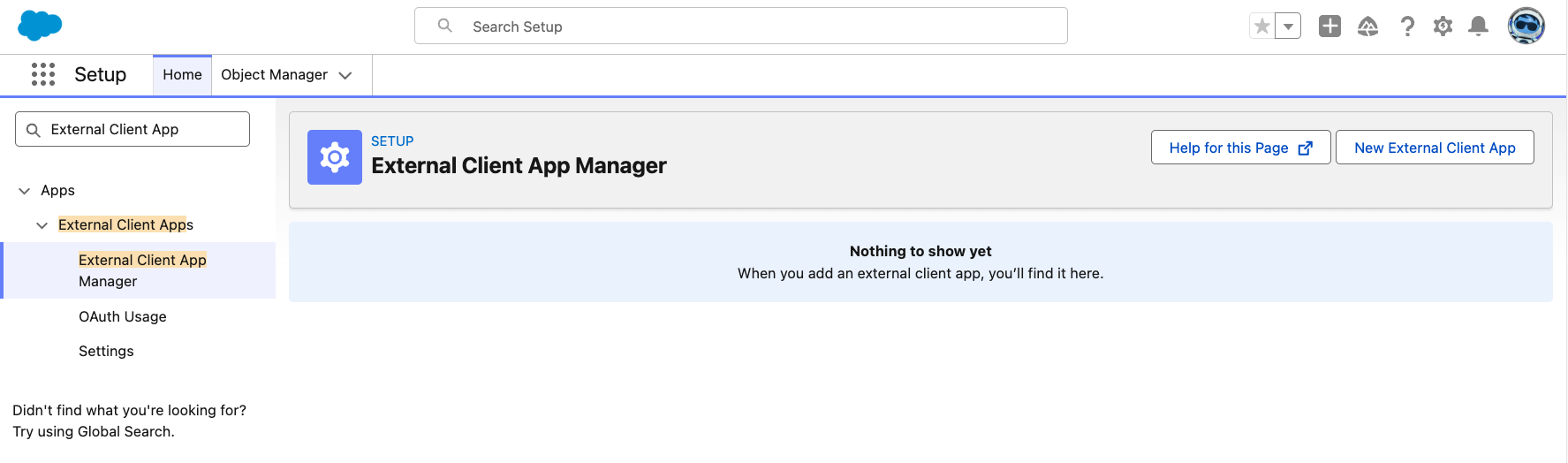
  1. From Salesforce Setup, in the Quick Find box, enter and select External Client App Manager. If this page doesn’t show up, enter and select External Client App in some releases.
  2. Select New External Client App.

ECA Manager Salesforce Setup

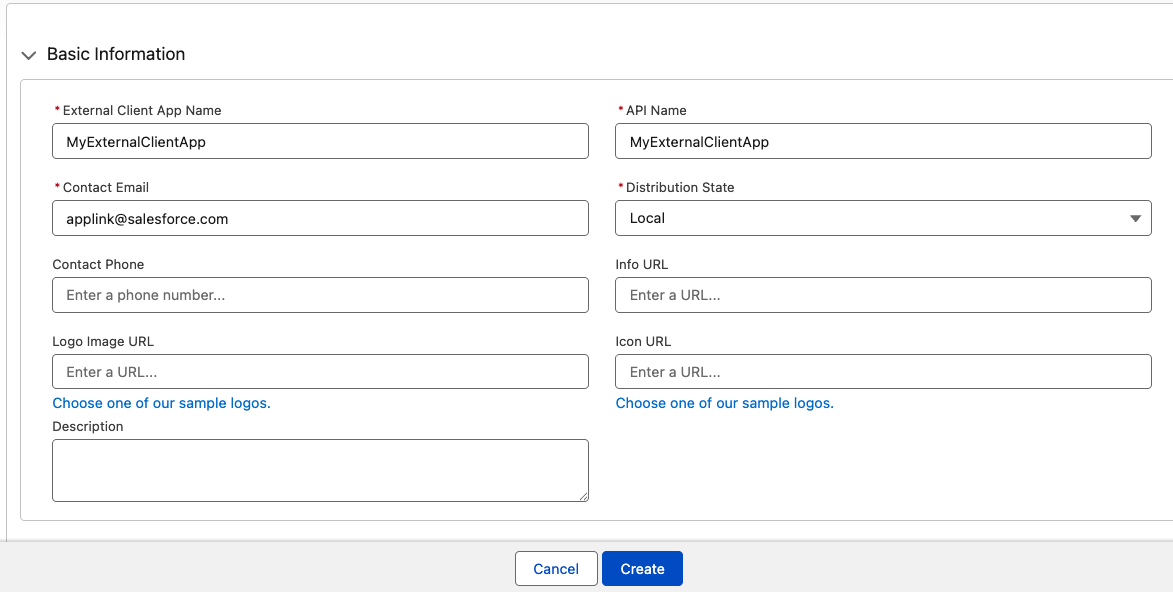
  1. Complete the Basic Information section:
    1. External Client App Name: the display name for your ECA.
    2. API Name: this field must match the externalClientApp reference in your API spec file. Salesforce auto-fills this field from the display name, but you can edit it. Name it carefully, because renaming later is difficult.
    3. Contact Email: a valid address for the publisher.
    4. Distribution State: select Local to only scope the ECA to this org only.
  2. Click Create.

ECA Basic Information

Step 2: Enable OAuth and Required OAuth Scopes

  1. On the ECA’s detail page, select the Settings tab.
  2. Click Edit and expand the OAuth Settings section.
  3. Select the Enable OAuth checkbox.
  4. Set Callback URL to https://localhost.
  5. Under OAuth Scopes, add the required scopes:
Scope Label Scope Key Description
Manage user data via APIs api AppLink can call Salesforce REST APIs on the user’s behalf.
Access the identity URL service id, profile, email, address, phone AppLink uses the identity URL during the OAuth callback to resolve the authenticating user. Without it, the callback completion can’t read the username.
Perform requests at any time refresh_token, offline_access Gives AppLink a refresh token so the connection survives beyond the initial access token’s lifetime. Without it, the connections break when the first token expires.
  1. Click Save.

In the Security section, leave Require Secret for Web Server Flow and Require Secret for Refresh Token Flow enabled by default unless you have a specific reason to change them.
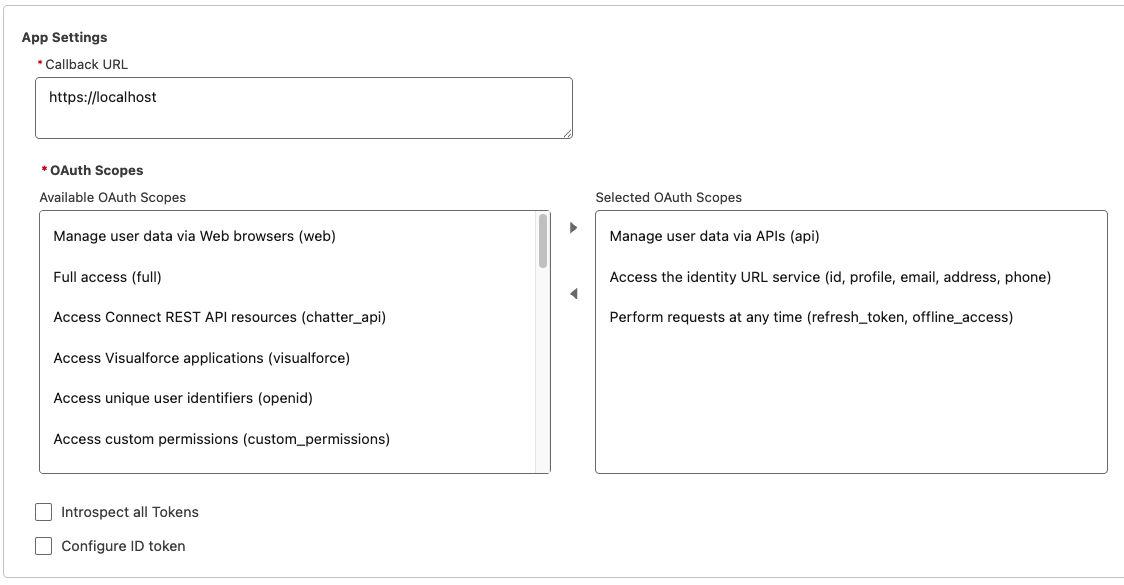
ECA OAuth Scopes

Step 3: Configure Refresh Token Policy

  1. On the ECA’s detail page, select the Policies tab.
  2. Click Edit and expand the OAuth Policies section. In some releases, this section is under the OAuth Settings section from step 2.
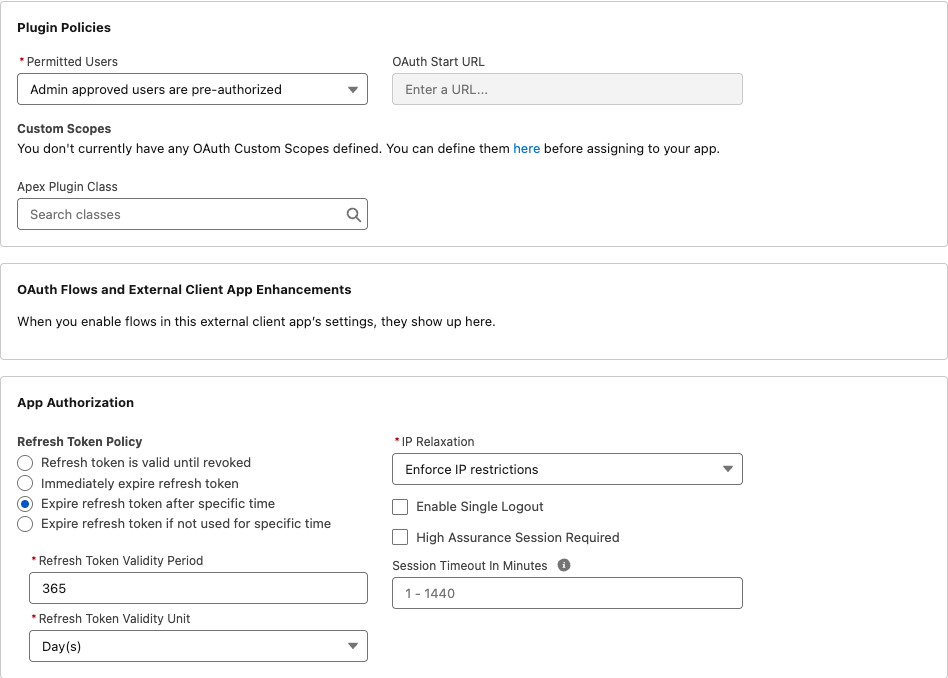
  3. Under App Authorization, set Refresh Token Policy to a value that keeps tokens valid for the lifetime of the AppLink integration. Refresh token is valid until revoked is the most flexible and recommended for long-lived integrations.
  4. Click Save.

ECA Refresh Token Policy

Step 4: Assign the ECA to Users or Profiles

If your org requires explicit grants for an ECA before users can authorize it:

  1. On the ECA’s detail page, select the Policies tab.
  2. Click Edit and expand the OAuth Policies section.
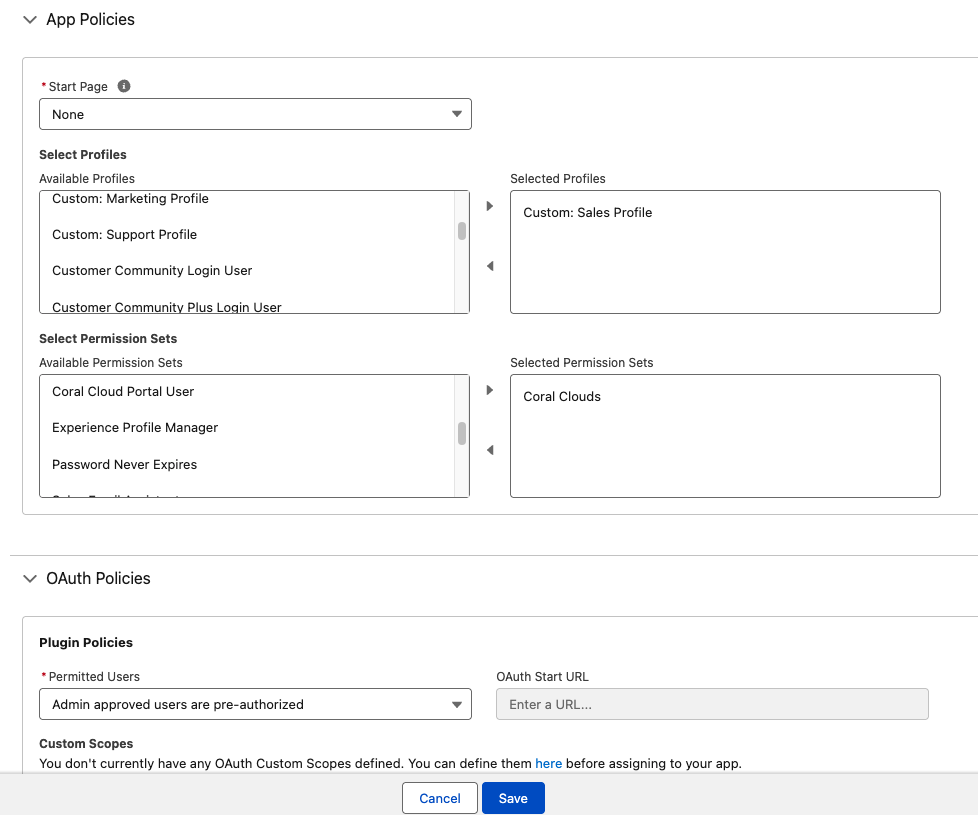
  3. Under Plugin Policies, set the Permitted Users dropdown to Admin approved users are pre-authorized.
  4. Under App Policies, select the relevant profiles and permission sets to grant access to the ECA.
  5. Click Save.

ECA App Policies

Step 5: Verify End-To-End with AppLink

  1. Create or update an AppLink connection pointing at this org.
  2. Trigger the OAuth flow and confirm:
    • The consent page lists the three scopes from step 2.
    • The callback URL resolves and the connection is persisted.
    • A subsequent API spec file publish operation that references the ECA’s API Name succeeds.

If the publish fails with a name-related error from Salesforce, re-check that the externalClientApp in your API spec file matches the ECA’s API Name exactly. The API Name is case-sensitive.

Additional Reading

  • Working with Heroku AppLink
  • JWT Authorizations with Heroku AppLink

Feedback

Log in to submit feedback.

Information & Support

  • Getting Started
  • Documentation
  • Changelog
  • Compliance Center
  • Training & Education
  • Blog
  • Support Channels
  • Status

Language Reference

  • Node.js
  • Ruby
  • Java
  • PHP
  • Python
  • Go
  • Scala
  • Clojure
  • .NET

Other Resources

  • Careers
  • Elements
  • Products
  • Pricing
  • RSS
    • Dev Center Articles
    • Dev Center Changelog
    • Heroku Blog
    • Heroku News Blog
    • Heroku Engineering Blog
  • Twitter
    • Dev Center Articles
    • Dev Center Changelog
    • Heroku
    • Heroku Status
  • Github
  • LinkedIn
  • © 2026 Salesforce, Inc. All rights reserved. Various trademarks held by their respective owners. Salesforce Tower, 415 Mission Street, 3rd Floor, San Francisco, CA 94105, United States
  • heroku.com
  • Legal
  • Terms of Service
  • Privacy Information
  • Responsible Disclosure
  • Trust
  • Contact
  • Cookie Preferences
  • Your Privacy Choices